
Generate a Contact Report: #
Create a new Contact Report #
 1. In Contact Reports click Add
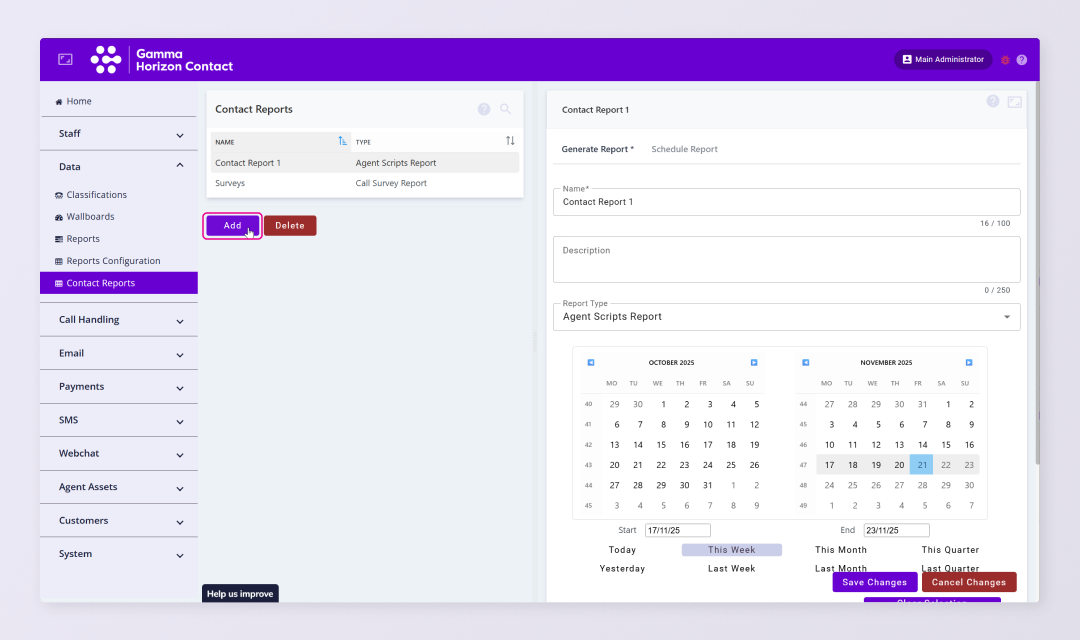


- Click Data → Contact Reports
- Click Add
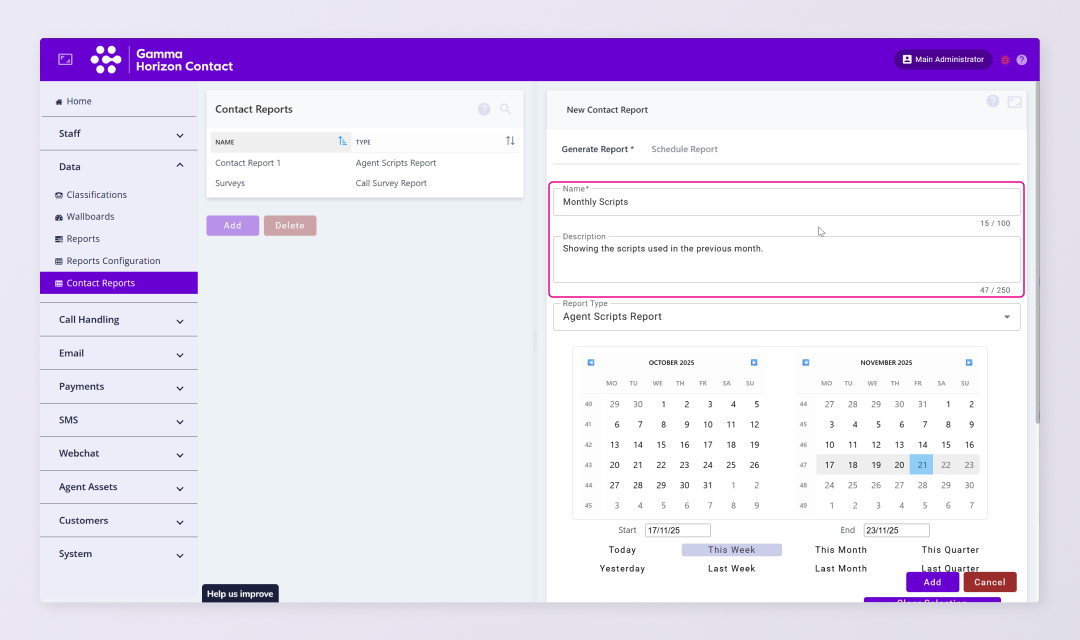
- Enter a mandatory Name for the report
- If required enter a Description
- Select the Report Type either:
- Agent Scripts Report
- Survey Report
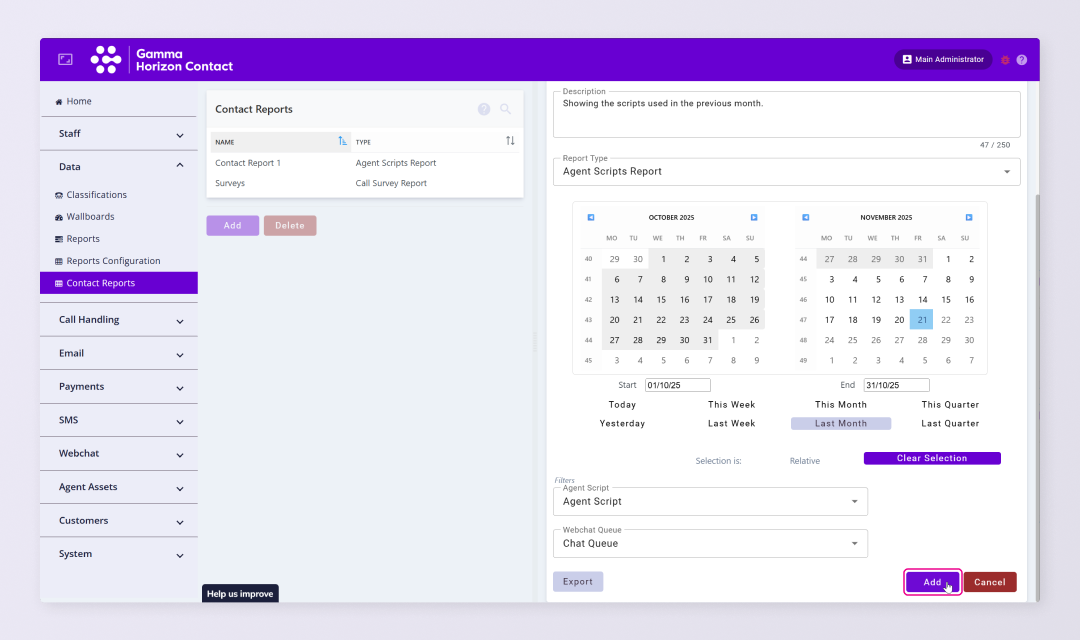
- Configure the time range the report looks at. There are multiple ways to do this:
- Configure days/weeks/months/quarters by selecting the relevant time period on the calendar
- Enter the required time range using the Start and End fields, dates can be entered in DD/MM/YY or DD/MM/YYYY format
- Select one of the pre-defined time range buttons (Today/This Week/Last Month etc)
- Select filters to refine the statistics to be included in the report
- Click Add
The report will created.
Export a Contact Report #
Exported Contact Reports they will be downloaded to your computer. The reports are usually exported as a CSV files however with Survey Reports it’s also possible to export the data as a PDF.
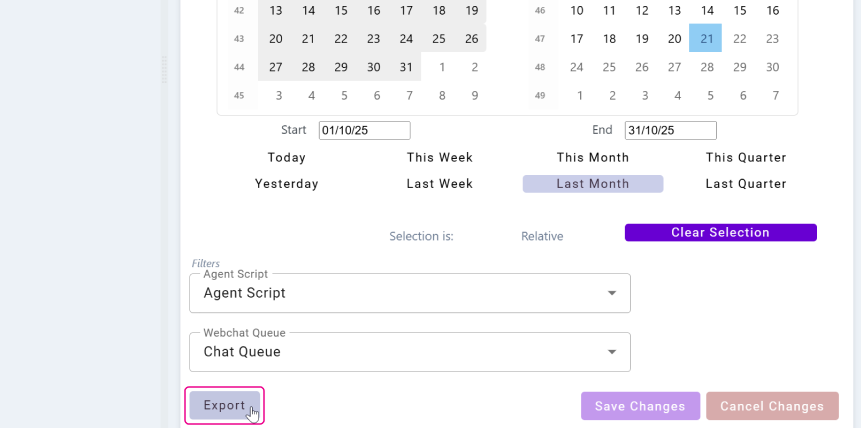
- Click Data → Contact Reports
- Either select a report or create a report by following the above instructions
- Click Export/Export PDF
The report will be downloaded to your computer.
| Note: When exporting a survey report file there is a limit of 1000 entries. If the report you are exporting contains more than 1000 entries you will need to select a shorter time period and export multiple reports. |