
In order for Agents to use the new version of CareConnect you need to download the new software onto their computer. CareConnect will now update automatically each time a new version is released, so you don’t need to download or install updates manually.
There are two ways to install CareConnect:
- Install using admin privileges for multiple users
- Install for a single user on one device
Install CareConnect for multiple user profiles #
If you are installing CareConnect on a Windows device with multiple user profiles and want all users to have access, follow these steps:
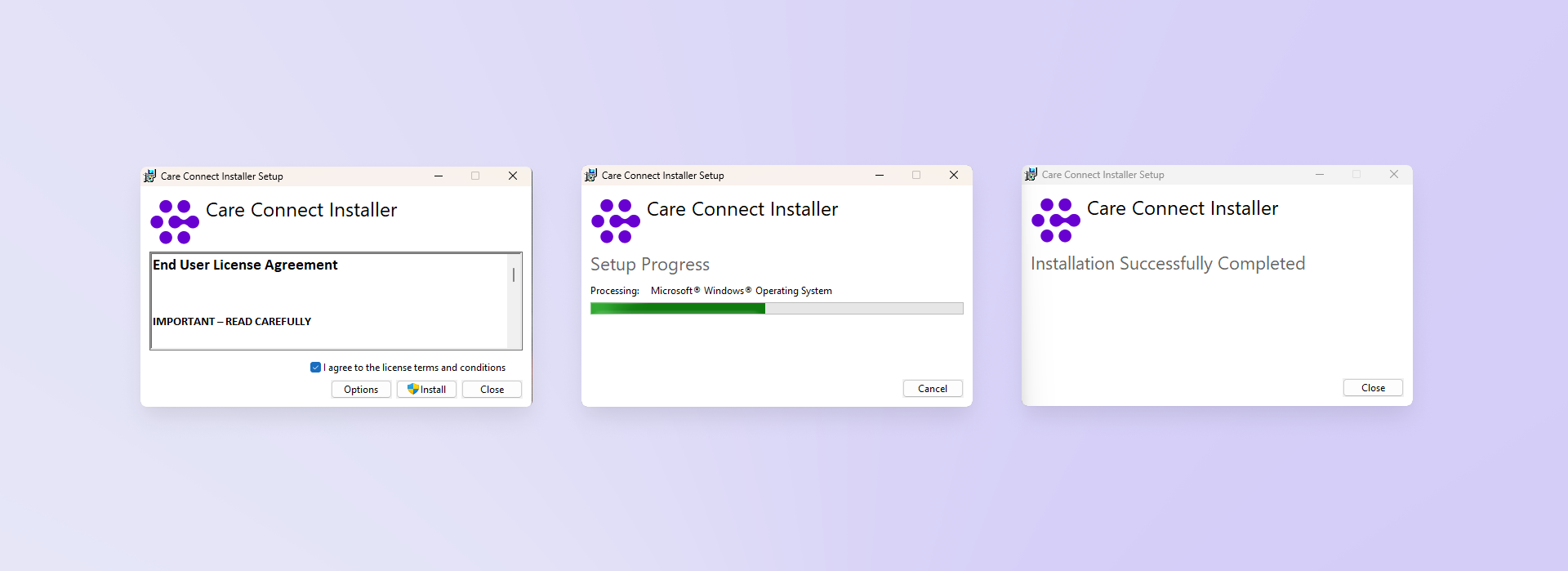
- Download the relevant installer file:
- Accept the licence agreement
- Click Install
- Enter Admin credentials when prompted
- Follow the instructions in the installation wizard
This installs the current version of the app for all users on the device. To ensure automatic updates work for all users, complete the steps below:
Enable automatic updates for all users #
This only needs to be completed the first time the app is installed:
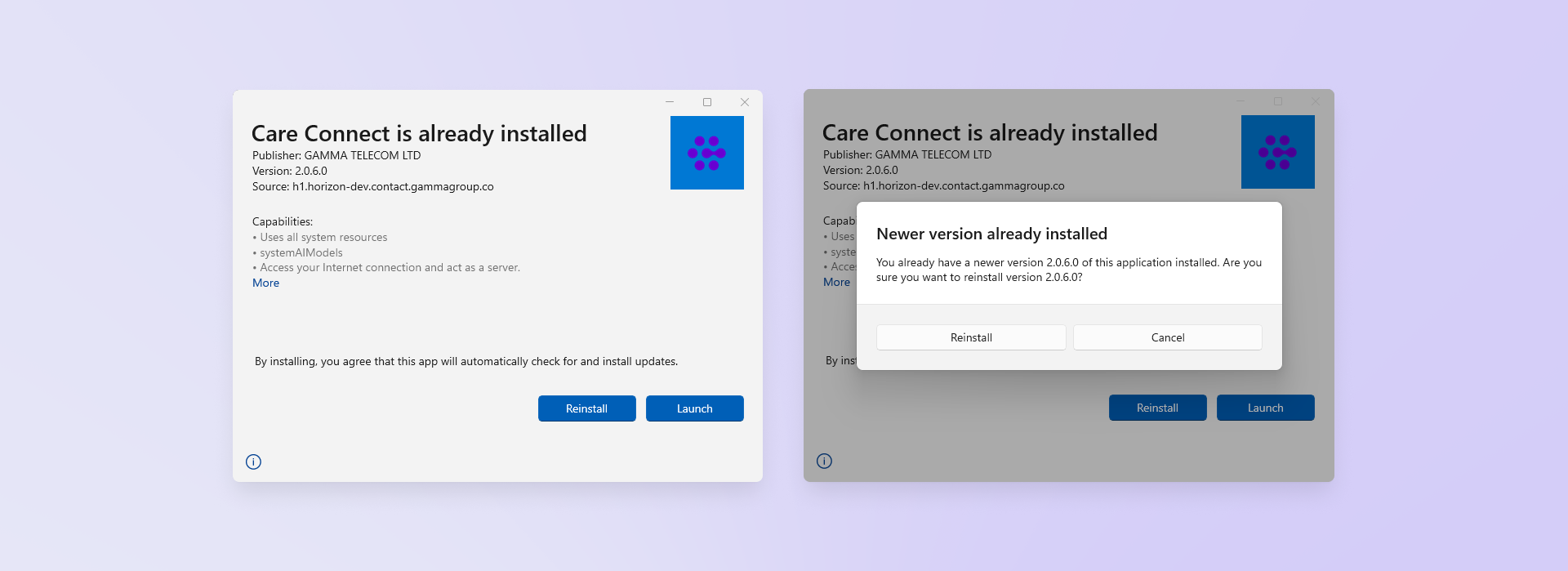
- Once the installation has successfully completed, the installer wizard will automatically relaunch, click Reinstall
- When prompted that a newer version is already installed, Click Reinstall
These steps ensure that future updates are applied automatically for all users.
Install CareConnect for an individual user #
If you are installing CareConnect on a Windows device with only one user profile, or you only want to give access to one user on a shared device, follow these steps:
- Download the relevant MSIX file:
- Double-click the file
- Follow the instructions in the installation wizard
The app will be installed for that user and will update automatically in the future without requiring admin rights.
Install via Intune #
You also have the option to install CareConnect via Intune. If you wish to use this method of install please reach out to your BDM who will be able to assist.