
Company Administrators can permanently delete all CRM records for their company using the Delete all CRM Records feature. This allows organisations to fully reset their CRM, for example when starting fresh, removing test data, or preparing for an updated import of contacts.
This action removes all CRM contacts and their associated data and history.
Permission to Delete All Records: #
The Delete all CRM Records option is:
- Available on the CRM Contacts admin page
- Visible only to Company Administrators
- Controlled by the permission: Allow deletion of all CRM records
- Disabled by default
If the permission is not enabled, the button will not be visible.
Enable access: #
- Go to Admin Settings
- Open Roles and Permissions
- Edit the Company Administrator role
- Enable Allow deletion of all CRM records
- Save your changes
How to Delete All CRM Records #
| Warning: This action cannot be undone, and all CRM contacts, data, and history will be permanently deleted |
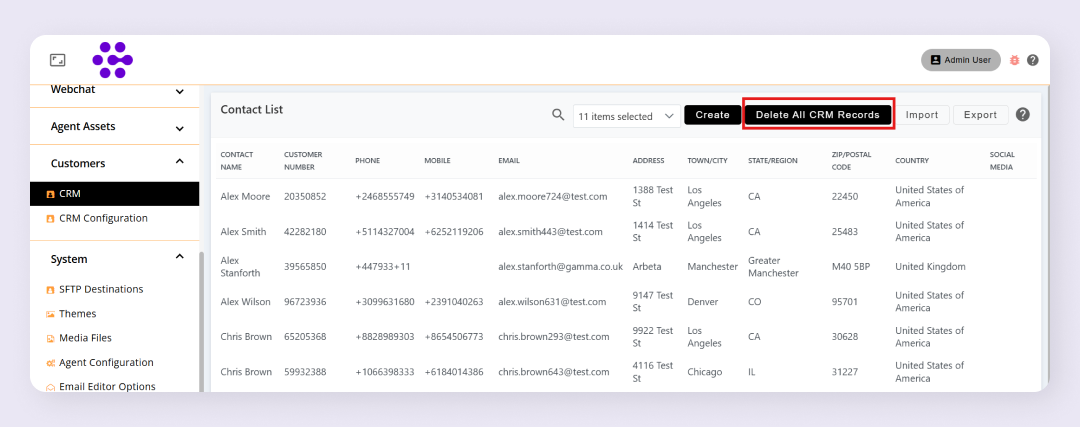 Delete all CRM Records button
- Navigate to CRM Contacts
- Locate the Delete all CRM Records button
- Click Delete all CRM Records
- A confirmation message will appear: “All CRM records, their data and history will be permanently deleted. If you need this data, please export it before continuing. Are you sure?”
- Note: It is strongly recommended to export your CRM data before deleting, if you may need it later
- Select Yes to proceed with deletion
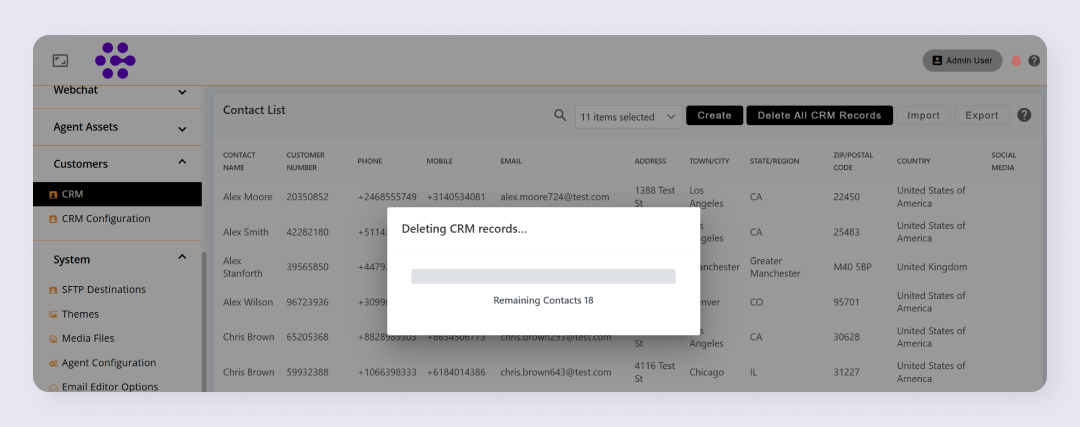
The deletion process will begin.
What Happens Next #
- The deletion runs as a background job
- All CRM contacts and their history are permanently removed
- During this process:
- CRM imports cannot be performed until deletion completes
- A status bar will indicate how the progress of the deletion is going
- Once the job completes, normal CRM import and management functions will be restored.
Troubleshooting #
I cannot see the Delete all CRM Records button:
- Ensure you are logged in as a Company Administrator
- Confirm the Allow deletion of all CRM records permission in the Company Administrator Role is enabled